


Sharing and permissions
There are two ways to give someone access: invite them by email, or publish a link. Both are set up in the same dialog, and both can be changed or withdrawn at any time.
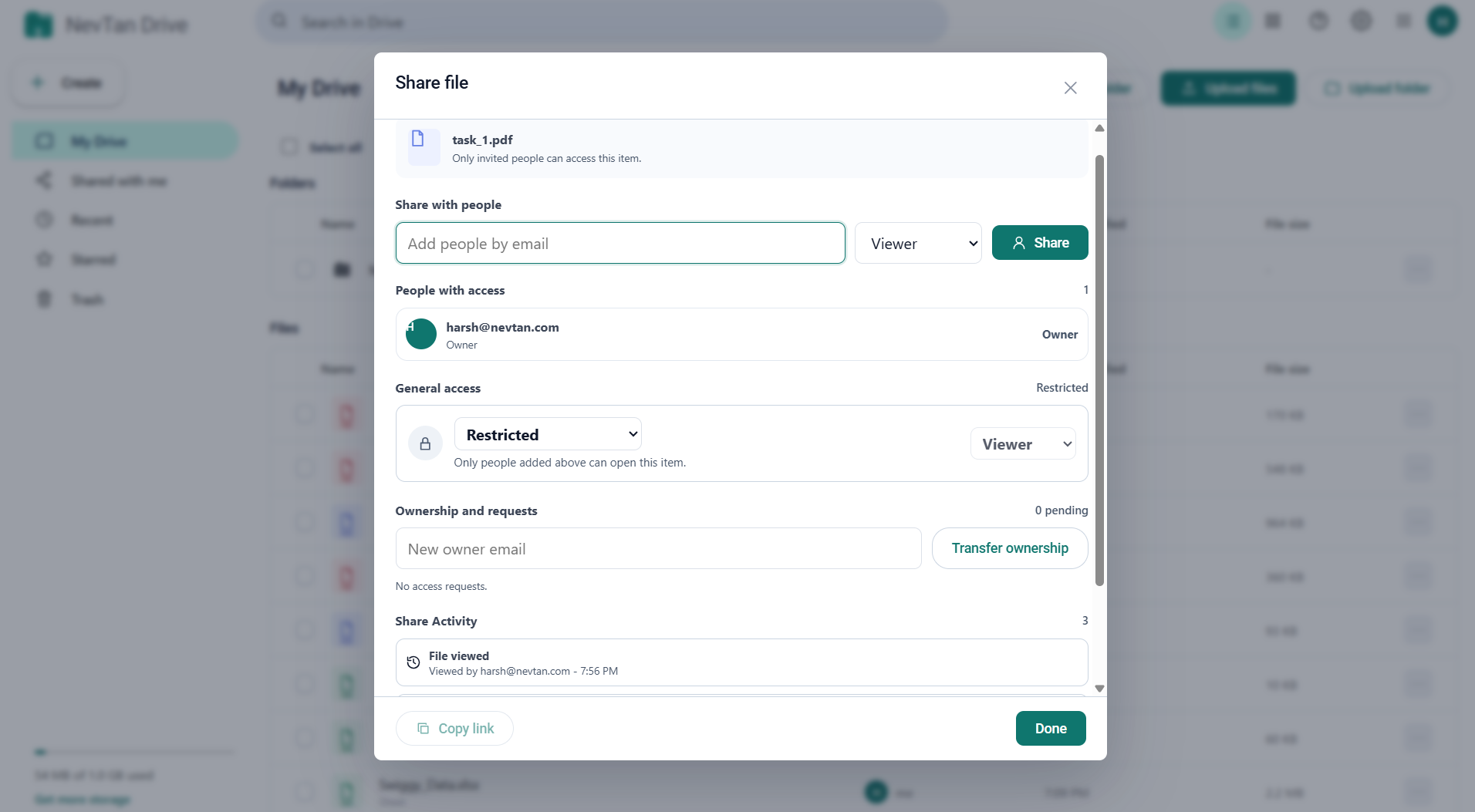
Open it with Share from a file's or folder's ⋮ menu, from the bulk toolbar when one item is selected, or from the Share button in the PDF editor.
Roles
| Role | Can view | Can comment | Can edit | Can share |
|---|---|---|---|---|
| Viewer | Yes | No | No | No |
| Commenter | Yes | Yes | No | No |
| Editor | Yes | Yes | Yes | No |
| Owner | Yes | Yes | Yes | Yes |
Only the owner can share a file, delete it, or change who has access. Editors can change the file's contents and rename it, but not remove it or hand out access.
How to share a file by email
- Enter an addressType the person's email under Share with people.
- Pick a roleViewer, Commenter, or Editor.
- Select ShareThey appear immediately in People with access.
Changing or removing access
People with access lists the owner and everyone invited. Use the dropdown beside a person to switch them to a different role, or choose Remove access to revoke it entirely.
The checkbox below the list, Viewers and commenters can download this file, controls whether people without edit rights are allowed to take a copy.
How to share a file with a link
General access decides whether the file is reachable by anyone holding the URL:
- Restricted — only the people listed above can open it. This is the default.
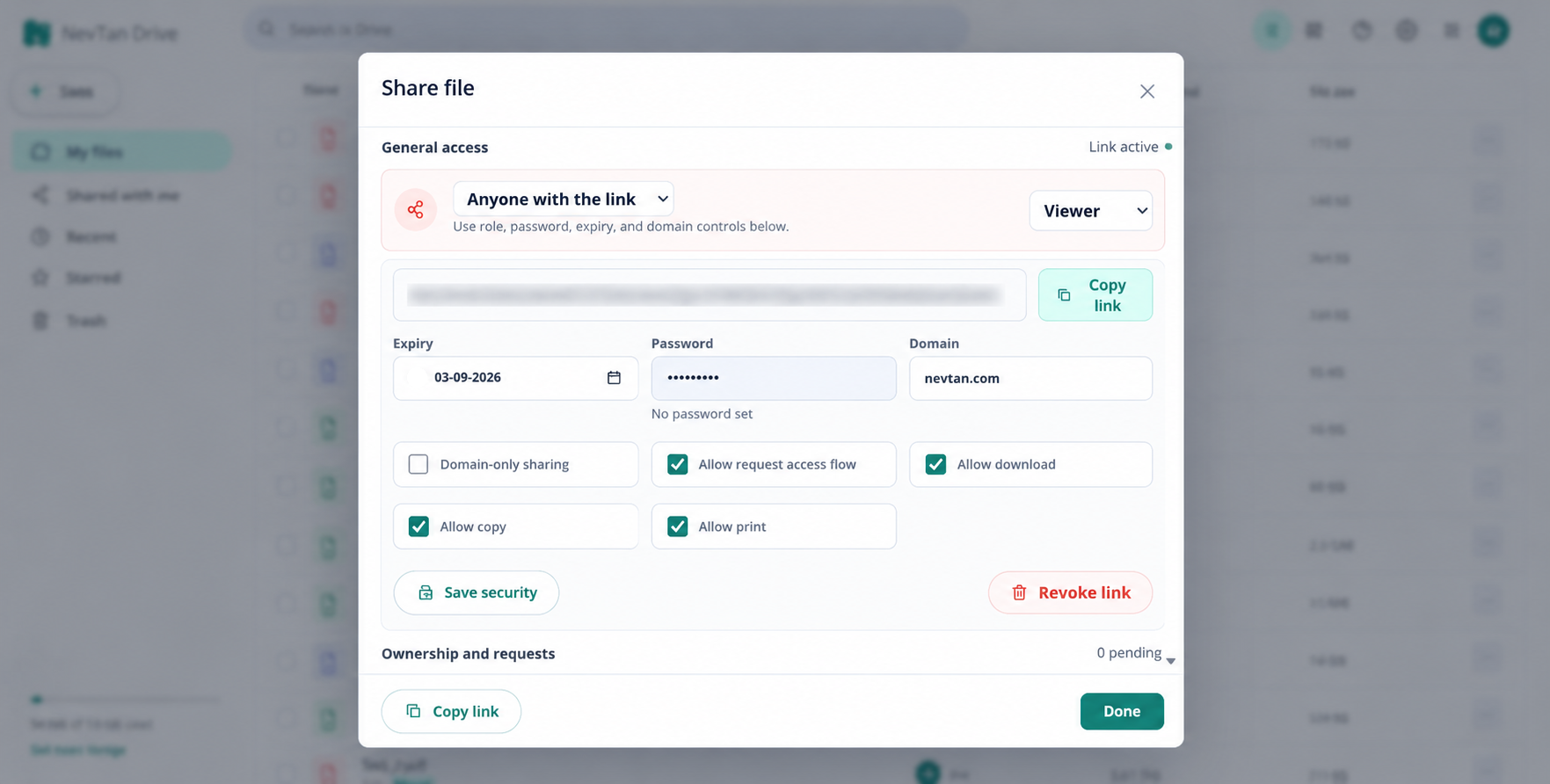
- Anyone with the link — the file becomes reachable at a share URL, with the role you choose beside it.
Switching to Anyone with the link reveals the URL with a Copy link button, plus the security controls below. Switching back to Restricted — or selecting Revoke link — kills the URL immediately.
Link security controls
| Control | What it does |
|---|---|
| Link role | Whether the link grants Viewer, Commenter, or Editor access. |
| Expiry | A date after which the link stops working. Dates in the past cannot be chosen. |
| Password | A password the visitor must enter before the file opens. Remove password clears it again. |
| Domain-only sharing | Restricts the link to a single email domain, which you type in the Domain field. |
| Allow request access flow | Lets someone without access ask the owner for it, rather than hitting a dead end. |
| Allow download | When off, visitors can read the file but not save a copy. |
| Allow copy | When off, text selection and copying are blocked on the shared page. |
| Allow print | When off, printing from the shared page is blocked. |
Change whatever you need, then select Save security to apply it.
Access requests
When Allow request access flow is on, someone who opens the link without sufficient access can send you their email address and a short message. Pending requests appear under Ownership and requests in the share dialog with Approve and Deny buttons.
Transferring ownership
Enter the new owner's email under Ownership and requests and select Transfer ownership. They take over the file, including the right to share and delete it.
Share activity
Share Activity at the bottom of the dialog logs what has happened to this file's sharing — links created and revoked, roles changed, access granted and removed — each with a timestamp. A shorter version appears in the details panel.
Sharing folders
Folders can be shared with people by email in the same way. Public share links, expiry, and passwords apply to individual files rather than folders.
Comments
Anyone with commenter, editor, or owner access can comment. Comments appear in a panel beside the file — in the preview window, in the document editors, and in the PDF editor, where a comment can also be anchored to a specific spot on a page and marked Resolved when it is dealt with.
Common questions
How do I share a file in NevTan Drive?
Open the file’s ⋮ menu and choose Share. From there you can invite someone by email address and give them a Viewer, Commenter or Editor role, or switch to the link tab and publish a share link instead. The two are independent: a file can have named collaborators, a link, or both.
What is the difference between inviting someone and sending a link?
An invitation is tied to a person’s account, carries the role you chose, appears in their Shared with me, and can be withdrawn. A link works for anyone holding it, needs no account to open, and is controlled by its own settings — an expiry date, a password, or preview-only.
Can I take access away after sharing?
Yes, both ways. Remove a collaborator from the share dialog, or revoke a link so it stops working for everyone holding it. Either change is written to the file’s audit log with a timestamp.