


Trash and restoring files
Deleting something in Drive moves it to Trash rather than destroying it. Nothing leaves your account until you say so.
Deleting an item
Choose Delete from a file's or folder's ⋮ menu, or select several items and use Move to Trash in the bulk toolbar. Drive asks you to confirm, then moves the items and shows “Item moved to Trash”.
How to recover a deleted file
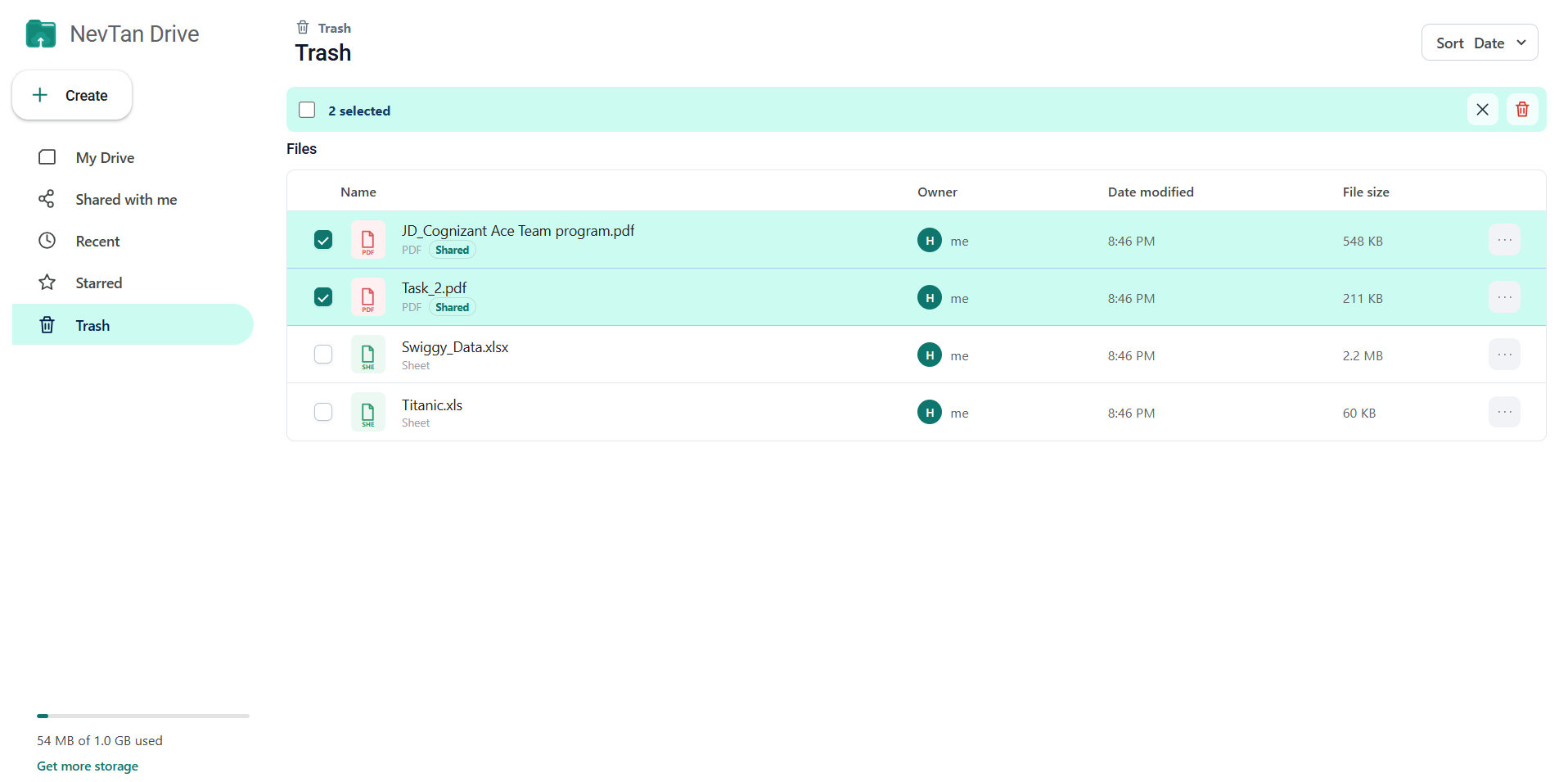
Open Trash in the sidebar. Every deleted item has a ⋮ menu with two choices:
- Restore — puts the item back where it came from.
- Delete forever — removes it permanently.
Emptying Trash
Tick items — or use Select all — then use the trash icon in the toolbar. Drive tells you how many items will go and warns that the action cannot be undone before you confirm.
Trash still counts toward storage
Items in Trash keep using your quota. If the storage meter looks fuller than you expect, empty Trash before assuming you need more space. See Storage and quota.
Common questions
How do I recover a deleted file?
Open Trash in the sidebar and choose Restore from the item's ⋮ menu. It returns to the folder it was deleted from. Nothing leaves your account until you empty Trash yourself.
Where do I find a file's version history?
Version history lives in the editor rather than in Trash, because it tracks edits rather than deletions. Open the file, then View → Version history: each saved version is listed with its timestamp and a Restore button that puts the file back to that version.
Does Trash still count toward my storage?
Yes. Deleted items keep using your quota until Trash is emptied, so if the storage meter looks fuller than you expect, empty Trash before assuming you need a bigger plan. See Storage and quota.