


Document editor
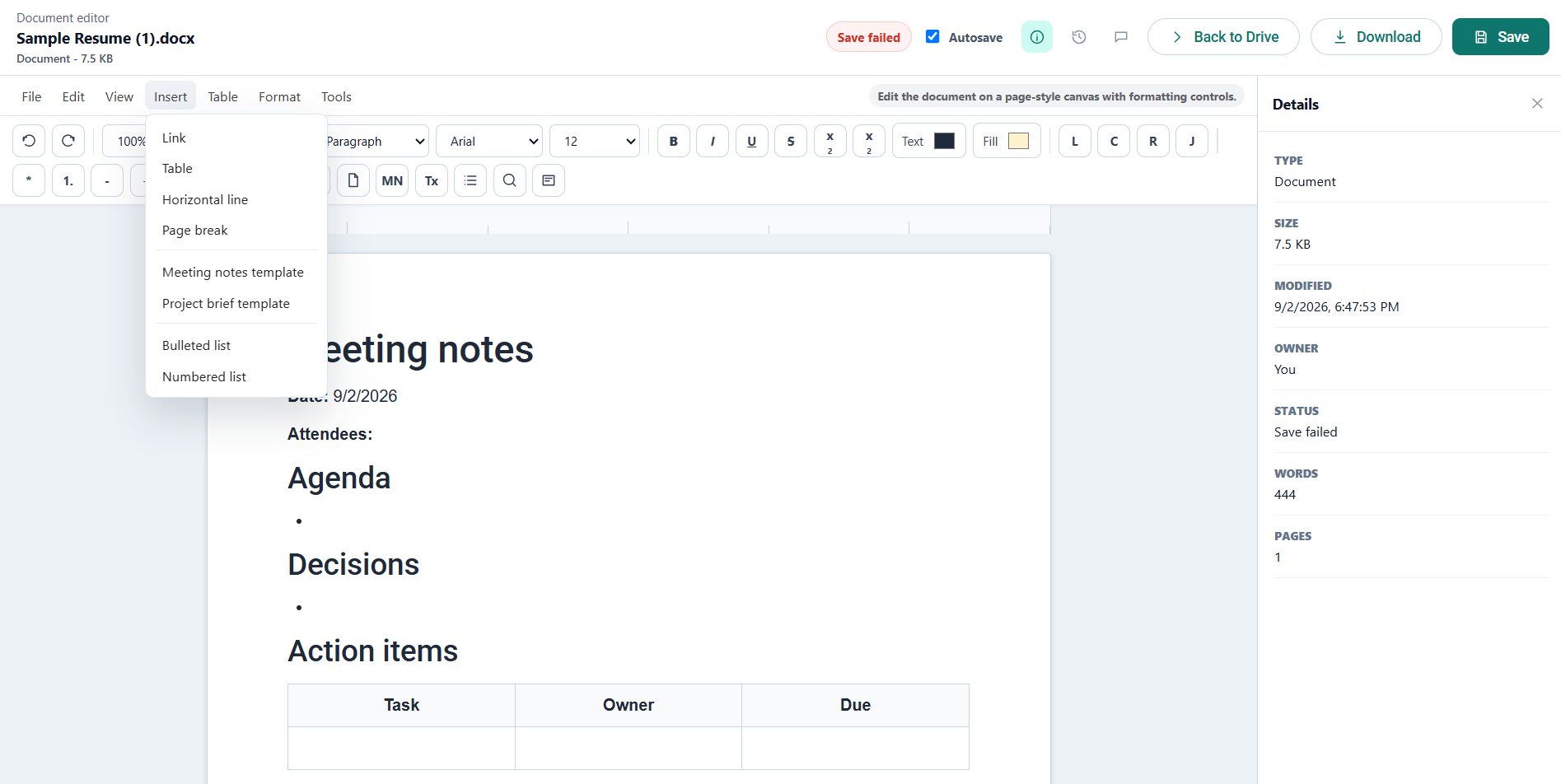
Word documents (.docx) open in a full page-based editor with a formatting toolbar, a document outline, and find and replace.
Page setup and zoom
- Zoom — 75%, 90%, 100%, 125%, or 150%.
- Page size — Letter, A4, or Wide.
Text formatting
The toolbar gives you, from left to right:
- Undo and Redo.
- Paragraph style — Paragraph, Heading 1, Heading 2, Heading 3, or Quote.
- Font — Arial, Calibri, Cambria, Georgia, Inter, Times New Roman, or Verdana — and a font size.
- Bold, Italic, Underline, Strikethrough, Subscript, and Superscript.
- Text and Fill colour pickers.
- Align left, center, right, and justify.
- Bulleted and numbered lists, with increase and decrease indent.
- Clear formatting, which strips styling from the selection.
Links, tables, and page breaks
- Insert link turns the selected text into a hyperlink.
- Insert table places a table at the cursor. Once the cursor is inside one, Table row below and Table column right extend it, and the Table menu can also delete the current row or column.
- Page break starts a new page at the cursor.
- Horizontal line inserts a divider.
Templates
Two starter layouts are on the Insert menu, and the meeting-notes one also has a toolbar button:
- Meeting notes — heading, agenda, decisions, and an action-items table with Task, Owner, and Due columns.
- Project brief — objective, scope, timeline, and risks.
The document outline
The Document outline button (also View → Document outline) opens a panel listing the headings in your document so you can jump between sections of a long file.
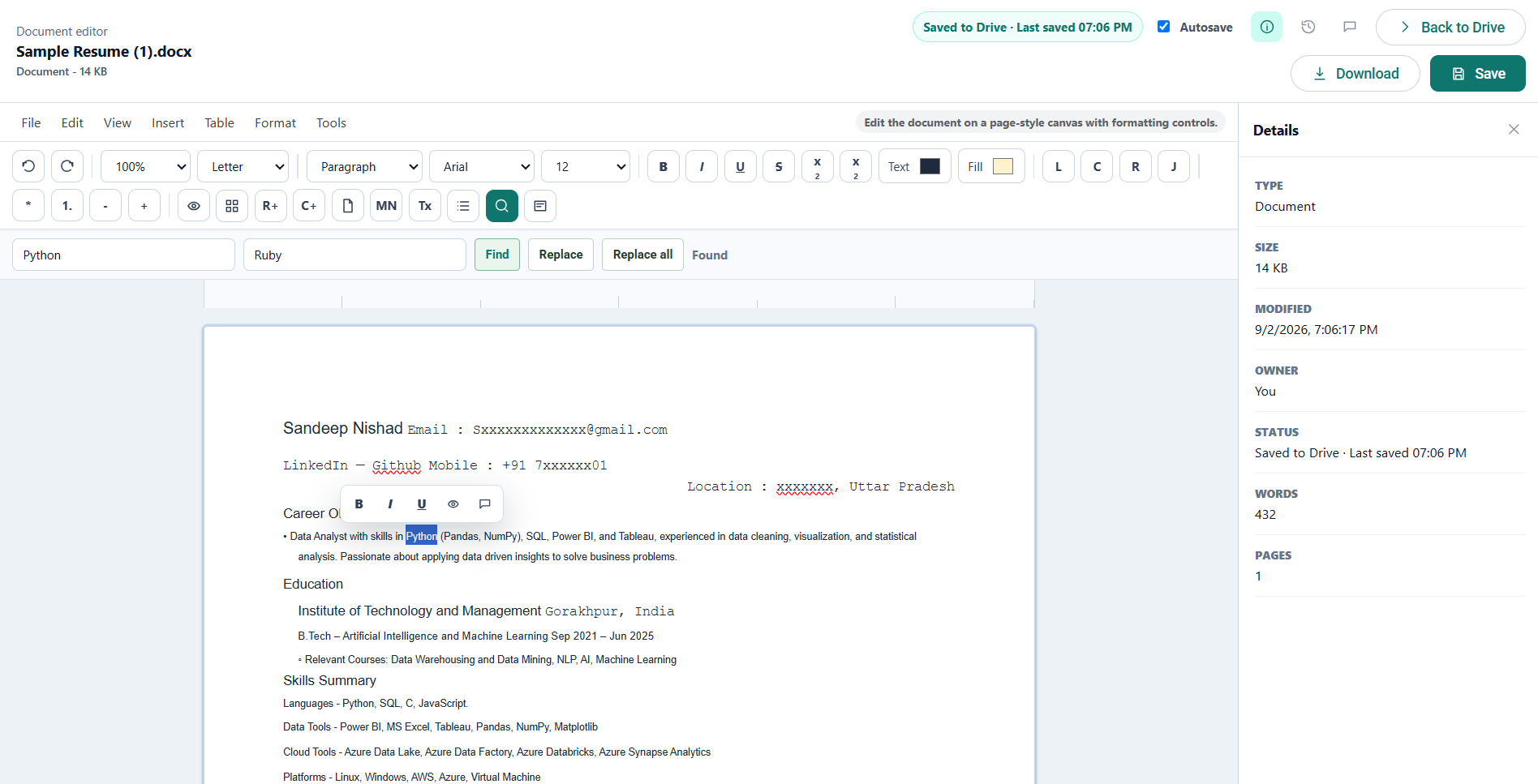
Find and replace
Open it from the toolbar or Edit → Find and replace. Type what to look for and what to replace it with, then use Find, Replace, or Replace all.
The status bar
Along the bottom, the editor keeps a live count of pages, words, characters, blocks, and tables.
Printing and exporting
File → Print opens the browser print dialog. File → Export to PDF produces a PDF of the document. File → Download saves the .docx itself.
Common questions
How do I edit a Word document online?
Upload the .docx to Drive, select it, and choose Edit. It opens in the document editor, and everything you change is saved back into the same .docx file — there is no import step and no second format to convert out of.
Will the file still open in Microsoft Word afterwards?
Yes. The editor writes a real .docx rather than its own document type, so anyone you send it to opens it in Word, Pages or anything else that reads the format. See how Drive compares with Microsoft 365 for where Word is still the better tool.