


Finding and organizing files
Drive gives you five ways to narrow down a long list: search, the type filter, sorting, folders, and stars.
How to find a file
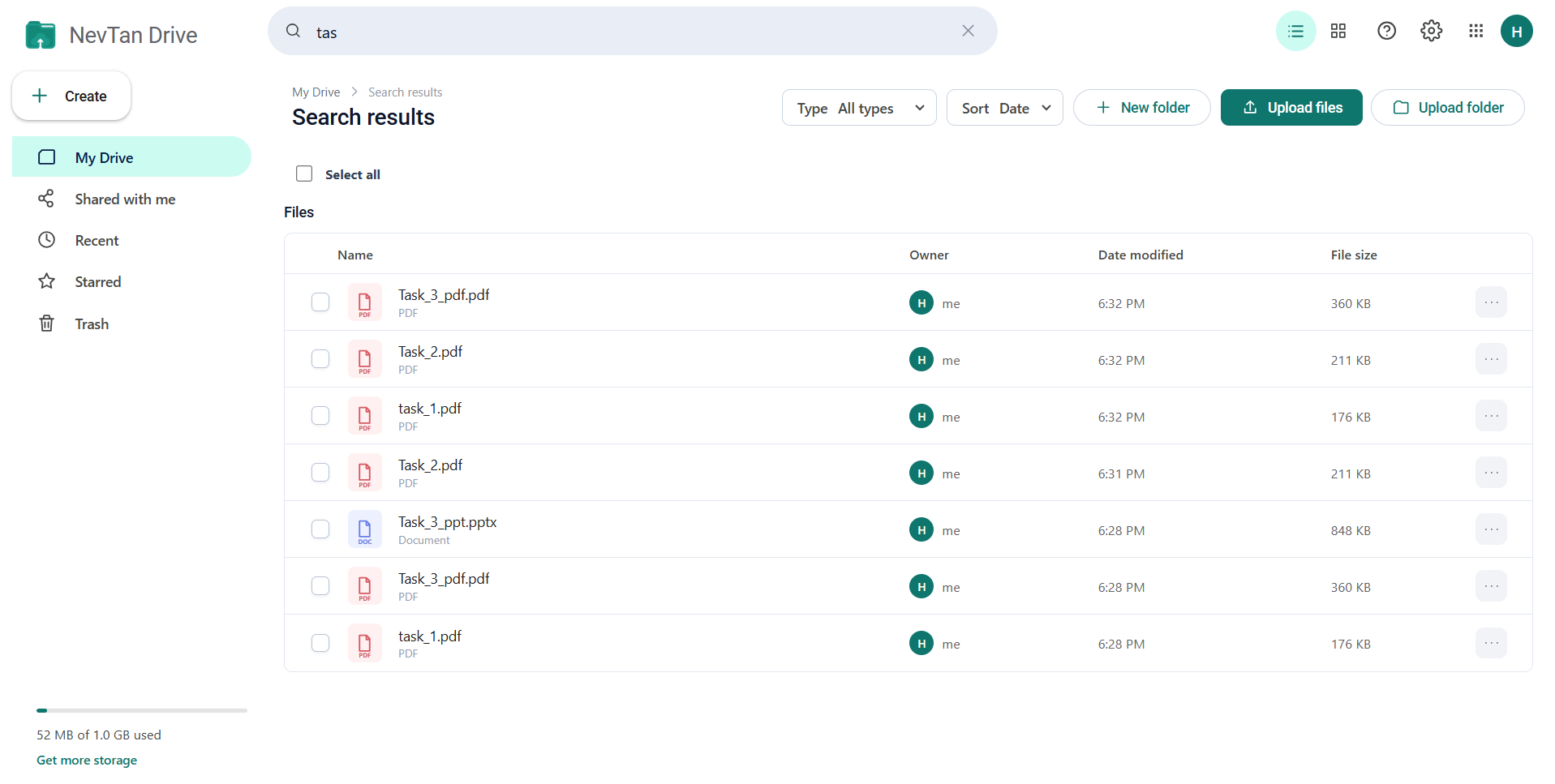
Type in Search in Drive at the top of any page. Results appear as you type — Drive waits a moment after your last keystroke before searching, so you can type a whole word without it searching on every letter.
- Search covers your files across all folders, not just the one you are looking at.
- The heading changes to Search results and shows what you searched for.
- Clear the box with the ✕ to return to where you were.
Filtering by type
The Type dropdown in the heading row narrows the list to one kind of file:
- All types, Documents, Images, Videos, Audio, Sheets, PDFs, Archives.
Drive works out the group from the file's type and extension, so a .xlsx and a .csv both count as Sheets, and .zip, .rar, .7z, .tar, and .gz all count as Archives.
Sorting
| Sort by | Order |
|---|---|
| Name | A to Z. |
| Date | Most recently changed first. This is the default. |
| Size | Largest first. |
Folders always appear above files, sorted the same way.
Folders and breadcrumbs
Select a folder to open it. A breadcrumb trail appears under the heading showing the path you took — select any step to jump back to it, or the first step to return to the root of My Drive.
Paging through long lists
Drive shows 15 items per page. When there are more, page controls appear at the right of the toolbar with a count like 16-30 of 62 and arrows to move between pages.
Starred
Star a file from its ⋮ menu, from the bulk toolbar, or from the details panel. Starred files gather in the Starred view in the sidebar. Unstar the same way — the menu item flips to Unstar for a file that is already starred.
Recent
Recent lists files by when you last opened or changed them, newest first. It is the fastest way back to something you were working on without remembering which folder it is in.
The details panel
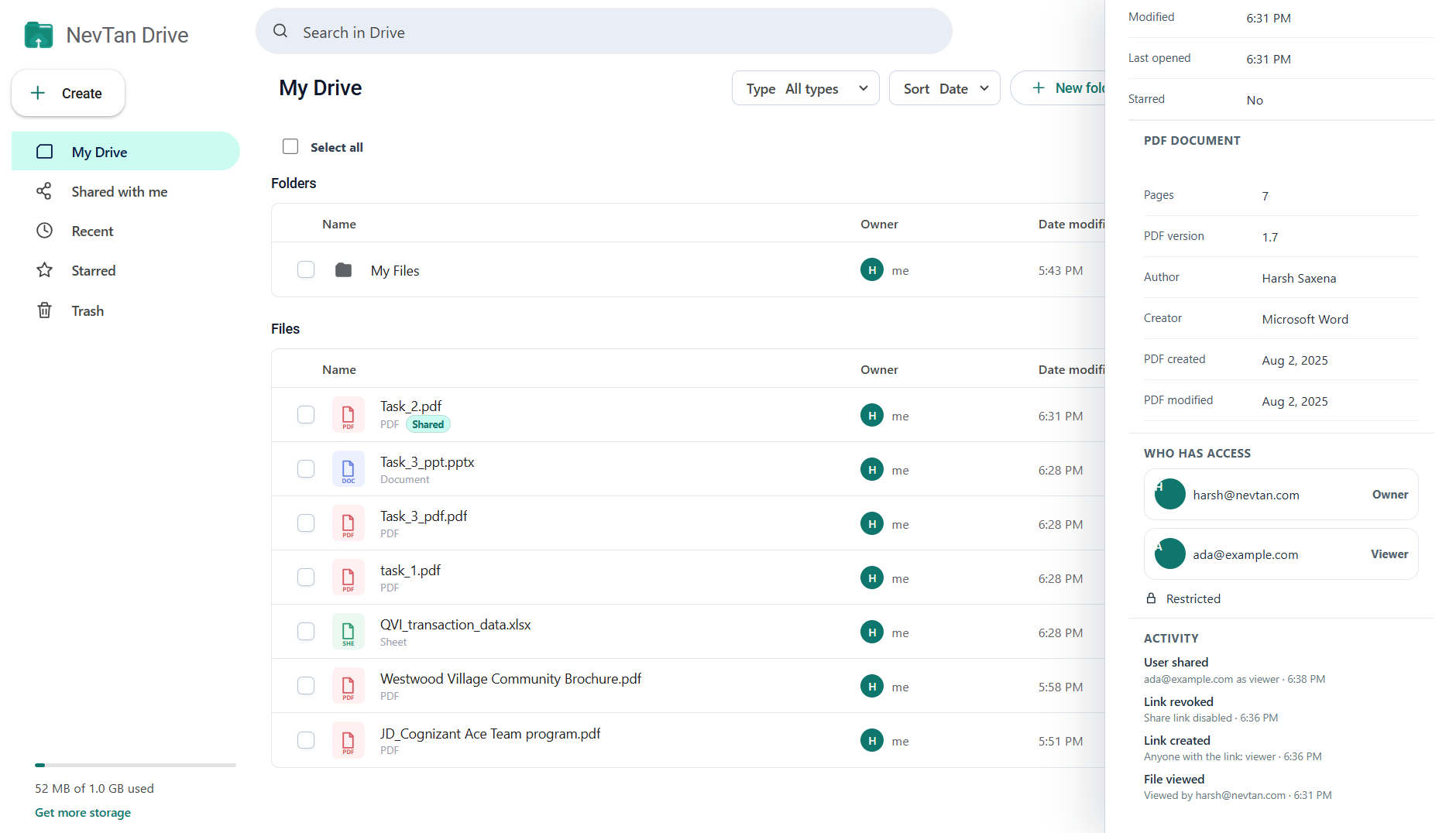
Details in the ⋮ menu opens a panel on the right with everything Drive knows about the item:
- Type, extension, MIME type, size, and file ID.
- Owner, location, created date, modified date, and when it was last opened.
- Whether it is starred.
- For PDFs — page count, PDF version, title, author, subject, creator, producer, and whether the file is password protected.
- Who has access — the owner, everyone the file is shared with and their role, and whether a public link is active.
- Activity — a short history of sharing events on the file.
Common questions
Does search look in folders I am not currently viewing?
Yes. Search covers your files across every folder, not just the one on screen. Results appear as you type — Drive waits a moment after your last keystroke before searching, so you can type a whole word without it searching on every letter.
Why does Drive only show 15 items?
Long lists are paged at 15 items per page. When there are more, page controls appear at the right of the toolbar with a count like 16-30 of 62 and arrows to move between pages.
How do I get back to something I was working on yesterday?
Use Recent in the sidebar, which lists files by when you last opened or changed them, newest first — the fastest route back to a file when you cannot remember its folder. For files you return to constantly, star them instead and use Starred.