


Editing files in Drive
Drive edits five kinds of file in the browser. Whichever one you open, the way you save, review versions, and comment is the same.
What can be edited
| Editor | File types |
|---|---|
| Document editor | .docx |
| Spreadsheet editor | .xlsx |
| Presentation editor | .pptx |
| PDF editor | .pdf |
| Text editor | .txt .md .csv .json .xml .yaml .html .css .js .ts .jsx .tsx .py .java .c .cpp .cs .go .rb .php .sh .sql .log .env .properties and similar |
Anything else can still be previewed and downloaded — it just has no editor.
How to open a file for editing
- Choose Edit from a file's ⋮ menu.
- Or open the preview and select Edit in its toolbar.
Saving and autosave
Editors keep a local draft in your browser about a second after you stop typing, then — if Autosave is ticked — save that draft back to Drive shortly after. The status text next to the file name tells you where things stand, showing the current state, the time of the last save, and the time of the last local draft.
- Untick Autosave to save only when you choose. Use File → Save, or press Ctrl + S (⌘ + S on a Mac).
- File → Discard changes throws away the working draft and reloads the file as it is stored in Drive.
- Saving updates the file everywhere — any other Drive tab you have open refreshes its list to match.
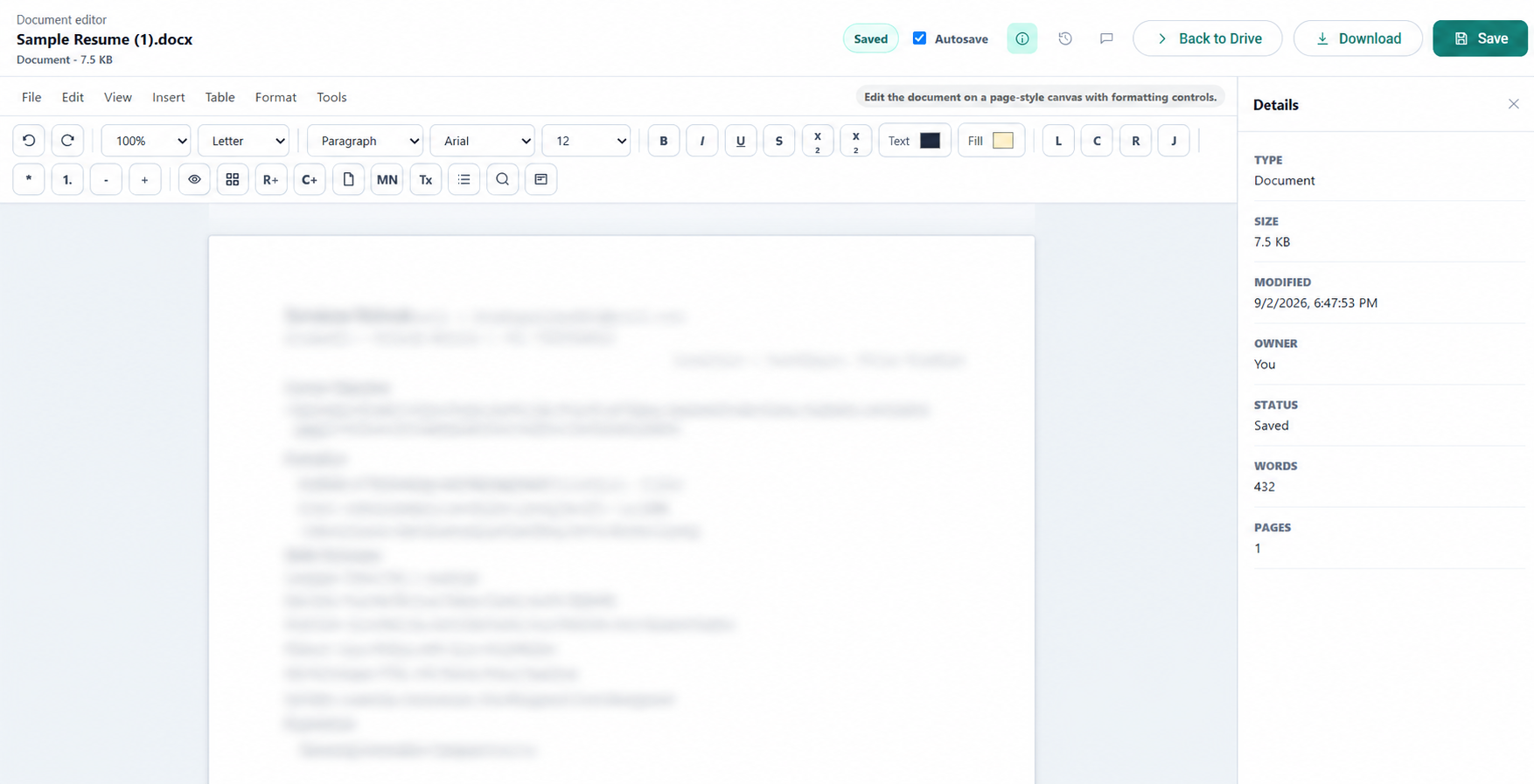
The menu bar
Every editor except the PDF editor has a menu bar. The menus change to suit the file type, but the pattern is consistent:
| Menu | Contains |
|---|---|
| File | Save, Discard changes, Download, Export to PDF, Print, Back to Drive (plus Present for presentations). |
| Edit | Undo, Redo, find and replace, basic formatting, and cell or slide operations for the relevant editor. |
| View | Details, Version history, Comments, and view options like the document outline, text wrapping, and speaker notes. |
| Insert | Links, tables, rows and columns, slides, page breaks, and the built-in document templates. |
| Format | Headings, bold/italic/underline, alignment, indentation, and lists. |
| Tools | Find and replace, word count, comments, activity, and file info. |
Spreadsheets add a Sheet menu, presentations add a Slide menu, and documents add a Table menu.
The side panels
Three icons at the top right of the editor open panels beside your document:
| Panel | Shows |
|---|---|
| Details | File name, type, size, save status, and per-editor statistics such as word count or sheet dimensions. |
| History | Version history — the current saved version and the previous one, with timestamps. |
| Comments | The comment thread for this file. Type a comment and select Add comment; your own entries are labelled You. |
In the document editor, selecting text pops up a small formatting bar with a comment button, so you can start a comment from the passage it refers to.
Editing text and code files
Plain text files open in a straightforward editor with three modes on the Format menu:
- Plain text — ordinary text.
- Code — a monospaced view for source files.
- Markdown — a rendered preview alongside the source.
View → Turn wrap on / off controls whether long lines wrap or scroll sideways.
Read-only editing sessions
If a file was shared with you as a commenter, the editor opens in read-only mode: you can read the content and add comments, but not change it. A View only badge makes this clear. See Sharing and permissions.
Common questions
Can I open docx online without Microsoft Word?
Yes. Open the file in Drive and choose Edit — the document editor reads the .docx directly and saves it back as .docx, so a document that came out of Word goes back into Word. There is nothing to install and no Microsoft licence involved.
Is there an xlsx viewer, and can I edit pptx online?
Yes to both. The spreadsheet editor is a full xlsx viewer and editor, opening workbooks with their formulas and multiple sheets, and the presentation editor opens pptx online for editing. Both save in the format they opened, so the file stays an Excel or PowerPoint file the whole way through.
Do I need to install anything to edit documents in the browser?
No. Every editor runs in the browser tab you already have open, so a managed laptop, a borrowed machine or a Chromebook works the same as your own. See Previews for what Drive renders without opening an editor at all.