


PDF editor
The PDF editor is the deepest tool in Drive. It marks up documents, fills and signs forms, reorganizes pages, and exports the result — all in the browser.
Open it with Edit on any PDF. The window has three parts: the page rail on the left, the document in the middle, and an optional side panel on the right.
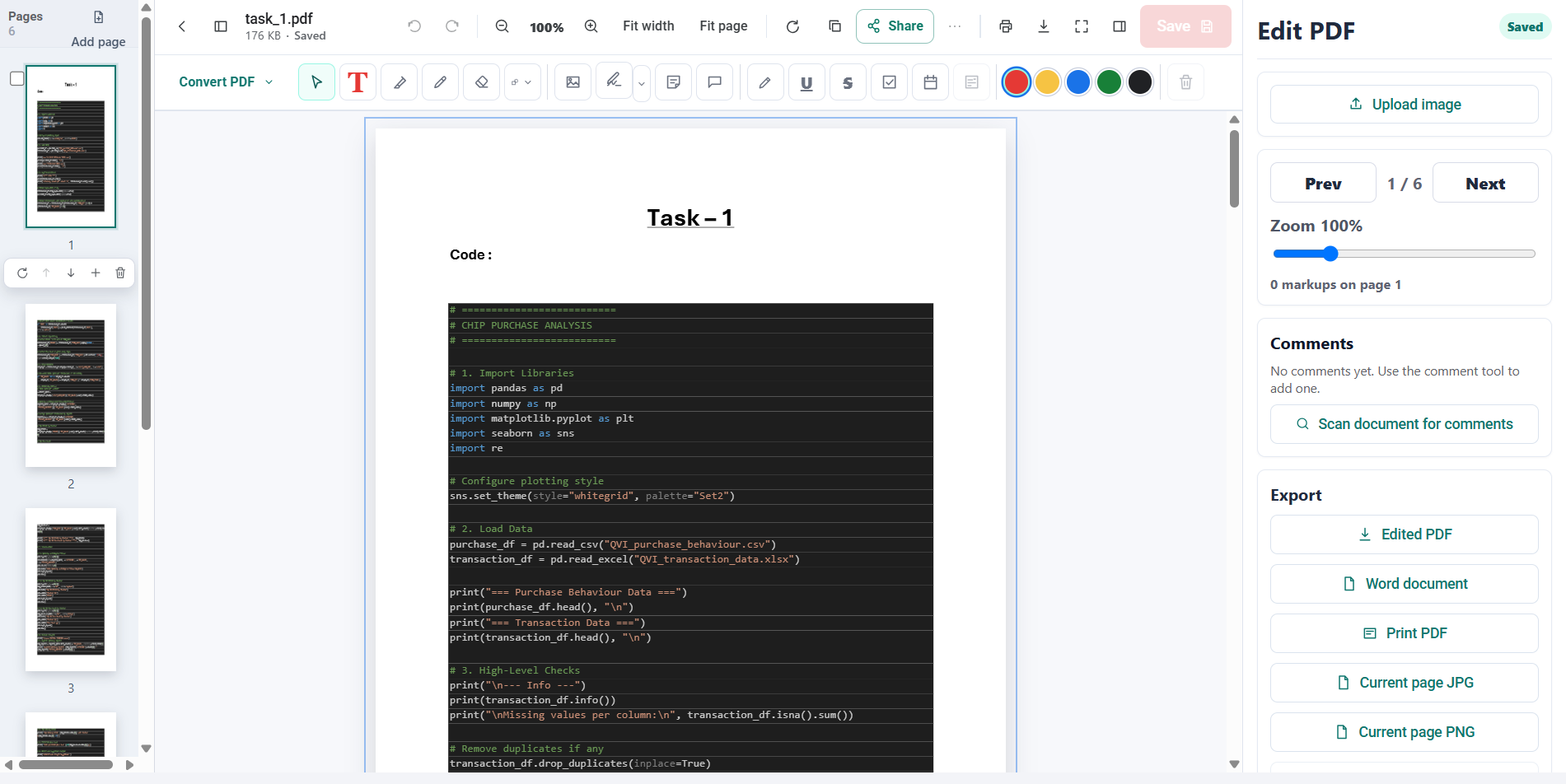
The top bar
| Control | What it does |
|---|---|
| Back to Drive | Saves your changes and closes the editor. |
| Toggle page thumbnails | Shows or hides the page rail. |
| Undo / Redo | Steps back and forward through your edits. |
| Zoom out / Zoom in | Changes the magnification. |
| Fit to width / Fit whole page | Two automatic zoom modes. |
| Save as copy | Saves your edits as a new file, leaving the original untouched. |
| Share | Opens the share dialog for this PDF. |
| Print PDF | Prints the edited document. |
| Download edited PDF | Saves the edited document to your computer. |
| Toggle side panel | Shows or hides the panel on the right. |
How to edit a PDF online: the tools
| Tool | Key | What it does |
|---|---|---|
| Select | V | Move and resize anything you have already added. |
| Add text box | T | Click or drag to place a text box, then type. |
| Highlight | H | Drag across text to highlight it. |
| Underline | U | Underlines the text you drag across. |
| Strikethrough | K | Strikes through the text you drag across. |
| Draw | P | Freehand pen. |
| Eraser | E | Removes drawn marks. |
| Shapes | S | Rectangles, ellipses, lines, and arrows. |
| Add image | I | Places an image on the page. |
| Add signature | — | Places your saved signature. See below. |
| Sticky note | N | A collapsed note pinned to a spot on the page. |
| Comment | — | Starts a comment thread anchored to a point or region. |
| Add checkbox | C | Places a tick box — useful for forms. |
| Add today's date | D | Stamps the current date. |
| Edit existing text | — | Edits text that is already in the PDF. |
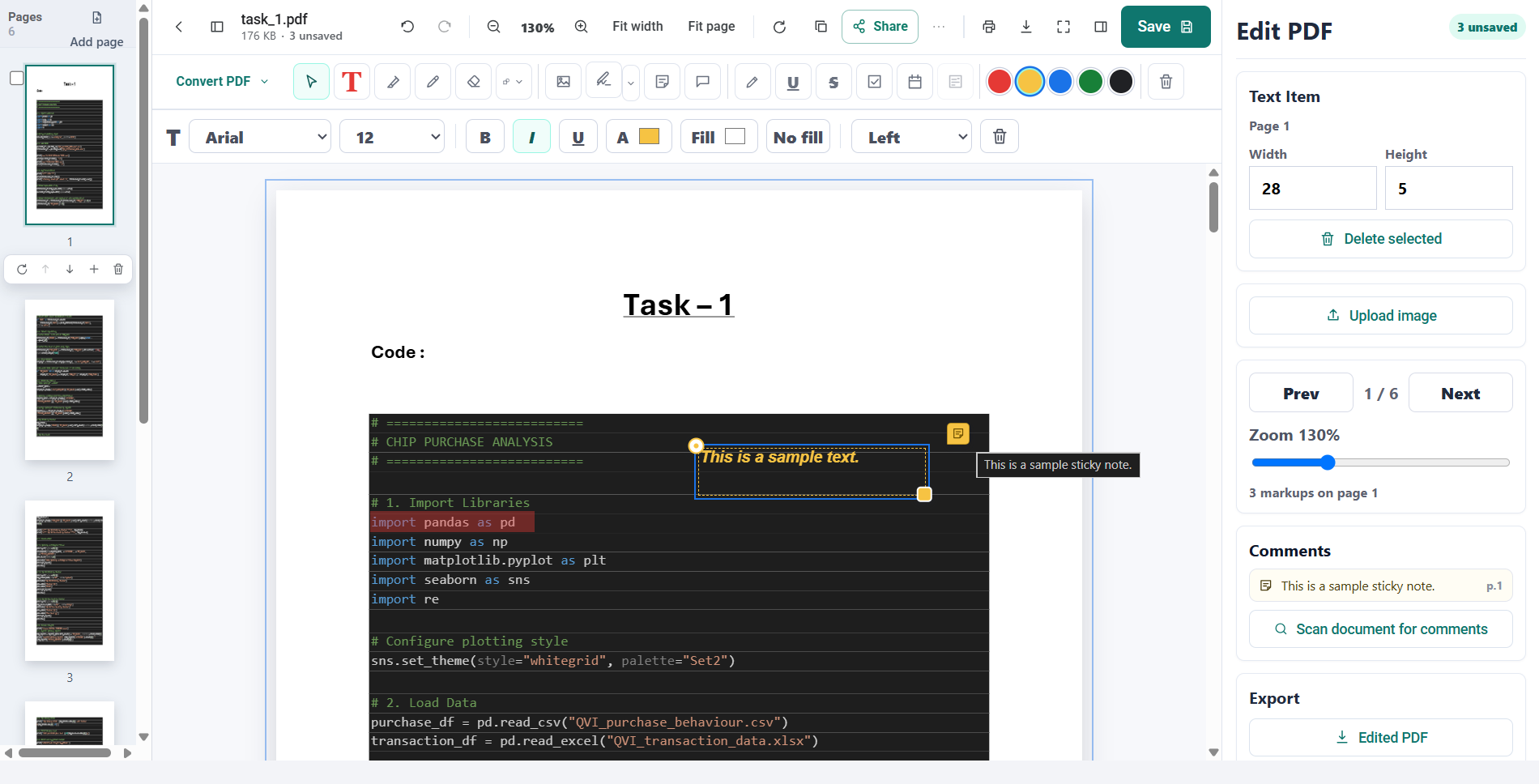
Selecting a text box opens a formatting bar with font (Arial, Helvetica, Times New Roman, Courier New, Verdana), size, bold, italic, underline, text colour, box fill (including transparent), and alignment.
Signatures
Draw or upload a signature opens a panel where you draw with the mouse or trackpad, or upload an image of your signature. It is saved in your browser so the Add signature button can drop it onto any document with one click.
Filling forms
For a PDF with form fields, Fill form fields switches the editor into form mode so you can type into the document's own fields instead of overlaying text boxes.
Managing pages
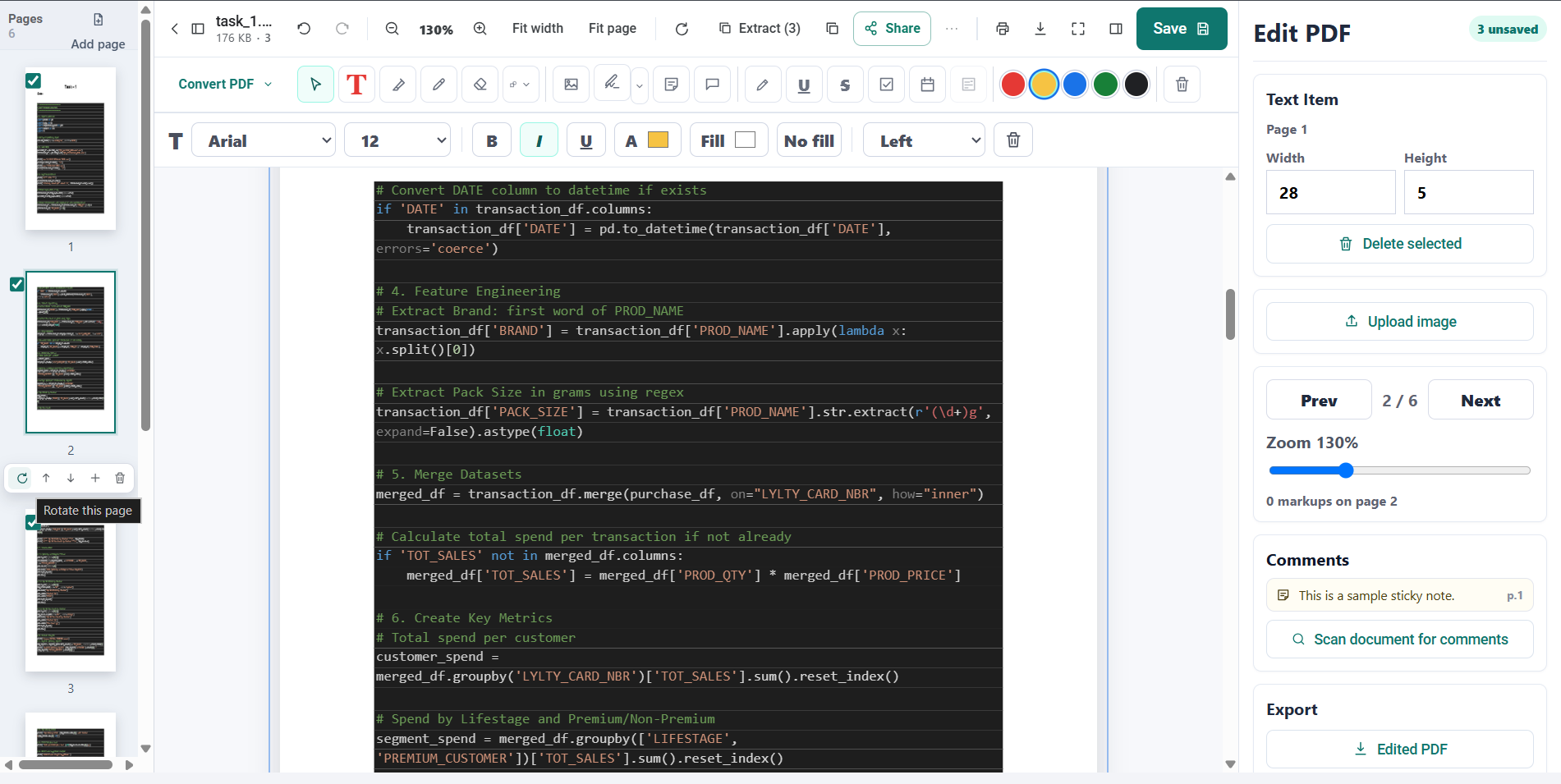
The page rail on the left shows a thumbnail for every page, with the page count at the top. Each thumbnail has controls to:
- Rotate that page.
- Move up or Move down in the document — you can also drag a thumbnail to a new position.
- Insert pages after this one.
- Delete the page — disabled when only one page is left.
- Select for extract — tick several pages, then use Extract to pull them out into a new PDF.
The + at the top of the rail appends a blank page at the end.
Comments
The Comment tool anchors a thread to a point or a dragged region on the page. Comments appear in the side panel where anyone with access can reply, and a thread can be marked Resolved once it has been dealt with.
Exporting and converting
The more options menu holds a Convert from PDF section:
- PDF to JPG — exports the current page as an image.
- PDF to WORD — exports the document's text as a Word file.
- PDF to POWERPOINT — makes a slide from each page's text.
- PDF to EXCEL — puts each page's lines of text into a spreadsheet, split into cells at column gaps.
- PDF to PDF/A — makes an archival PDF/A copy, or explains why the document can't be one.
To convert whole files — several at once, every page as an image, or Word, Excel, PowerPoint and HTML files into PDFs — use Tools in the sidebar.
Keyboard shortcuts
The PDF editor is fully keyboard-driven — see Keyboard shortcuts for the full list.
Common questions
Is PDF editing included in my plan?
PDF editing comes with the NevTan plans that include it, and there is no separate PDF subscription. If your plan does not include it, Drive tells you so, and a workspace admin can upgrade in NevTan Mail. Plans with a monthly allowance count each PDF once a month, however many times you save it.
Is this a PDF editor that works without uploading my file somewhere?
Your PDF is already in your own Drive workspace, and opening the editor does not hand it to an outside PDF service or conversion site. It is rendered and edited in your browser, and saving writes back to the same file in the same place.
How do I sign a PDF online?
Use Draw or upload a signature to draw one with your mouse or trackpad, or upload an image of it. After that, Add signature drops it onto any document in one click — you sign the document without leaving Drive, and without adding a separate signing product to get one signature onto one PDF. The signature is kept in your browser and deleted when you sign out, so nobody who uses the machine after you can reuse it. When a document has to go to several people in turn, each signing and countersigning with reminders and a certificate, that is NevTan Sign’s job rather than this editor’s.