


Spreadsheet editor
Excel workbooks (.xlsx) open in a grid editor with a formula bar, multiple sheet tabs, and live totals along the bottom.
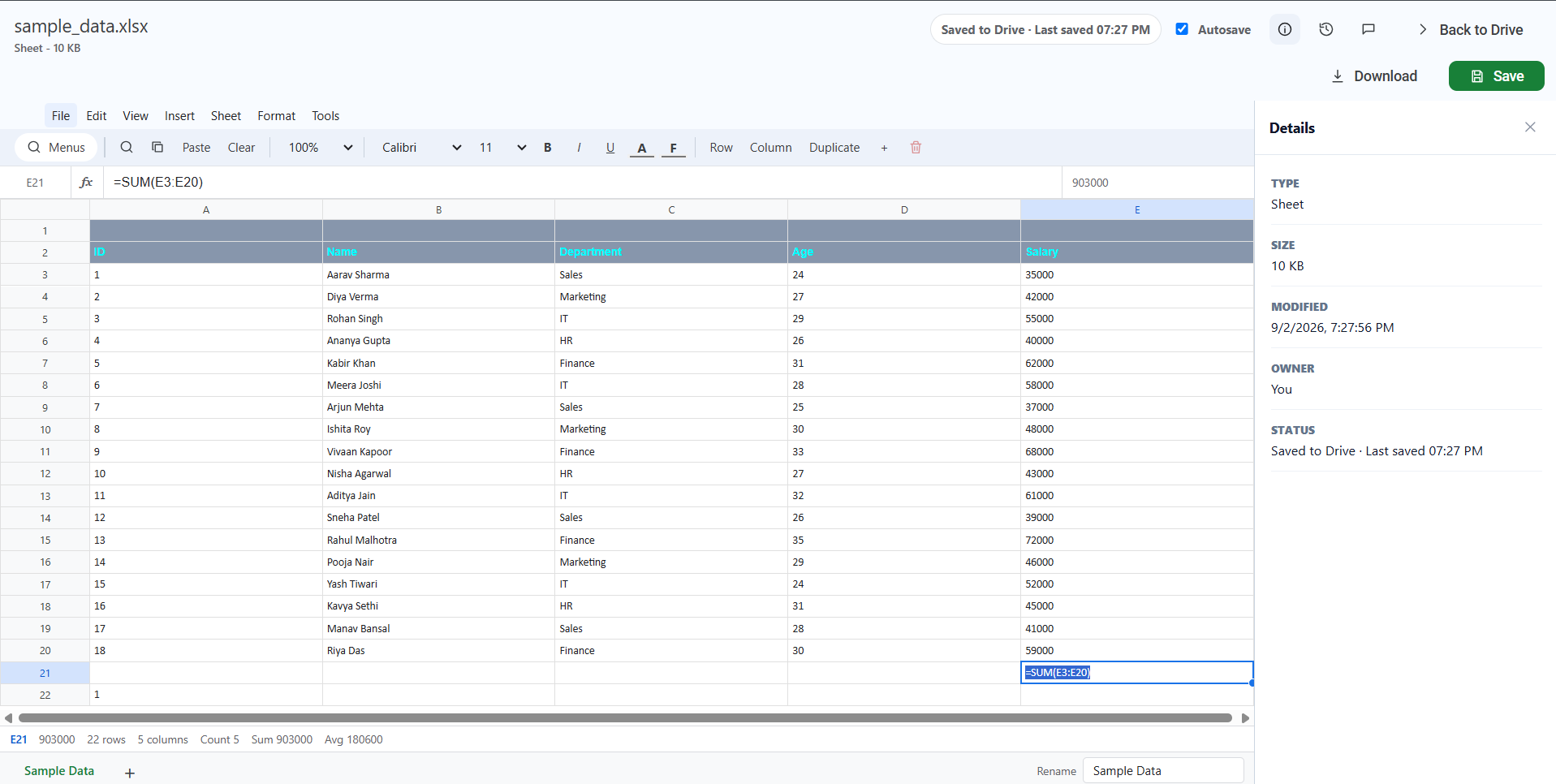
Entering data and formulas
Select a cell and type. The formula bar above the grid shows the selected cell's address, lets you edit its contents, and previews the calculated result. Formulas start with = and are recalculated as you work.
Cell formatting
- Font — Default, Calibri, Georgia, Times New Roman, or Verdana — and a font size.
- Bold, Italic, and Underline.
- Text colour and Fill colour.
- Zoom for the whole grid.
Rows, columns, and cells
| Action | Where |
|---|---|
| Insert a row above or below | Insert menu |
| Insert a column left or right | Insert menu, or the Column button in the toolbar |
| Delete the selected row or column | Sheet menu |
| Copy, paste, or clear the selected cell | Toolbar buttons, or the Edit menu |
Working with multiple sheets
- Sheet tabs run along the bottom; select one to switch to it.
- + adds a new sheet.
- Duplicate copies the current sheet.
- Delete sheet removes it — disabled when only one sheet remains.
- The Rename field beside the tabs renames the active sheet.
Find in sheet
The magnifier in the toolbar (or Edit → Find in sheet) opens a search bar that jumps to the first matching cell.
Templates
Insert → Budget template and Insert → Project tracker template drop in a ready-made structure to start from.
The status bar
The bar under the grid shows the selected cell's address and value, the number of rows and columns, and — for a numeric selection — Count, Sum, and Avg.
Common questions
Can I use this as an online spreadsheet with sharing?
Yes. A workbook in Drive can be shared the same way as any other file: invite people by email as Viewer, Commenter or Editor, or publish a share link with an expiry date and a password. Everyone works on the one file rather than on emailed copies.
Does it open .xlsx files with formulas and more than one sheet?
Yes. Formulas and multiple sheets both survive the round trip, and the file is saved back as .xlsx.
Is it a full replacement for Excel?
Not for everyone. If your spreadsheets are pivot tables, Power Query or macros, Excel remains the right tool and this editor does not try to match it. For ordinary workbooks — figures, formulas, several sheets, shared with a team — it does the job without a per-seat licence.