


Uploading and managing files
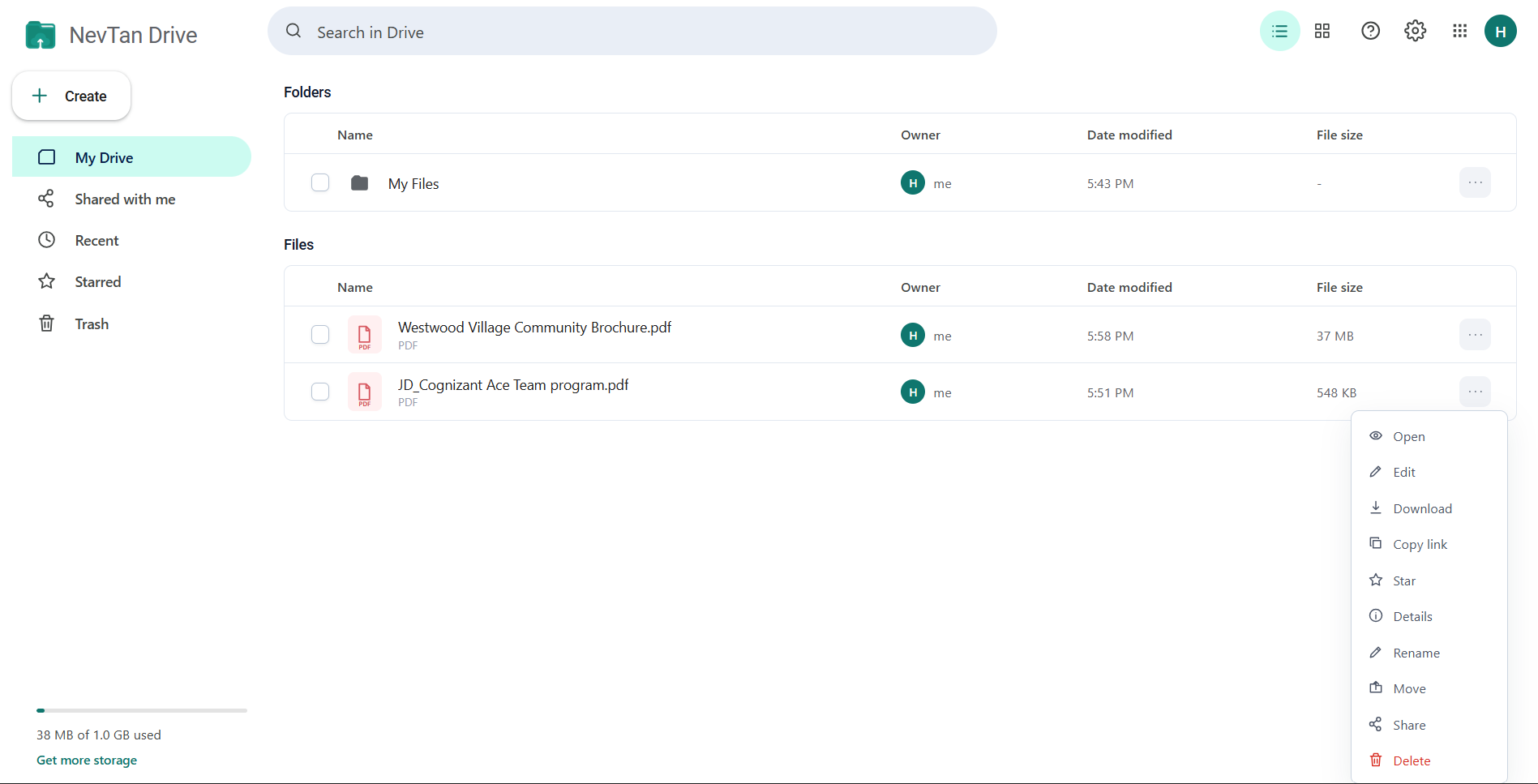
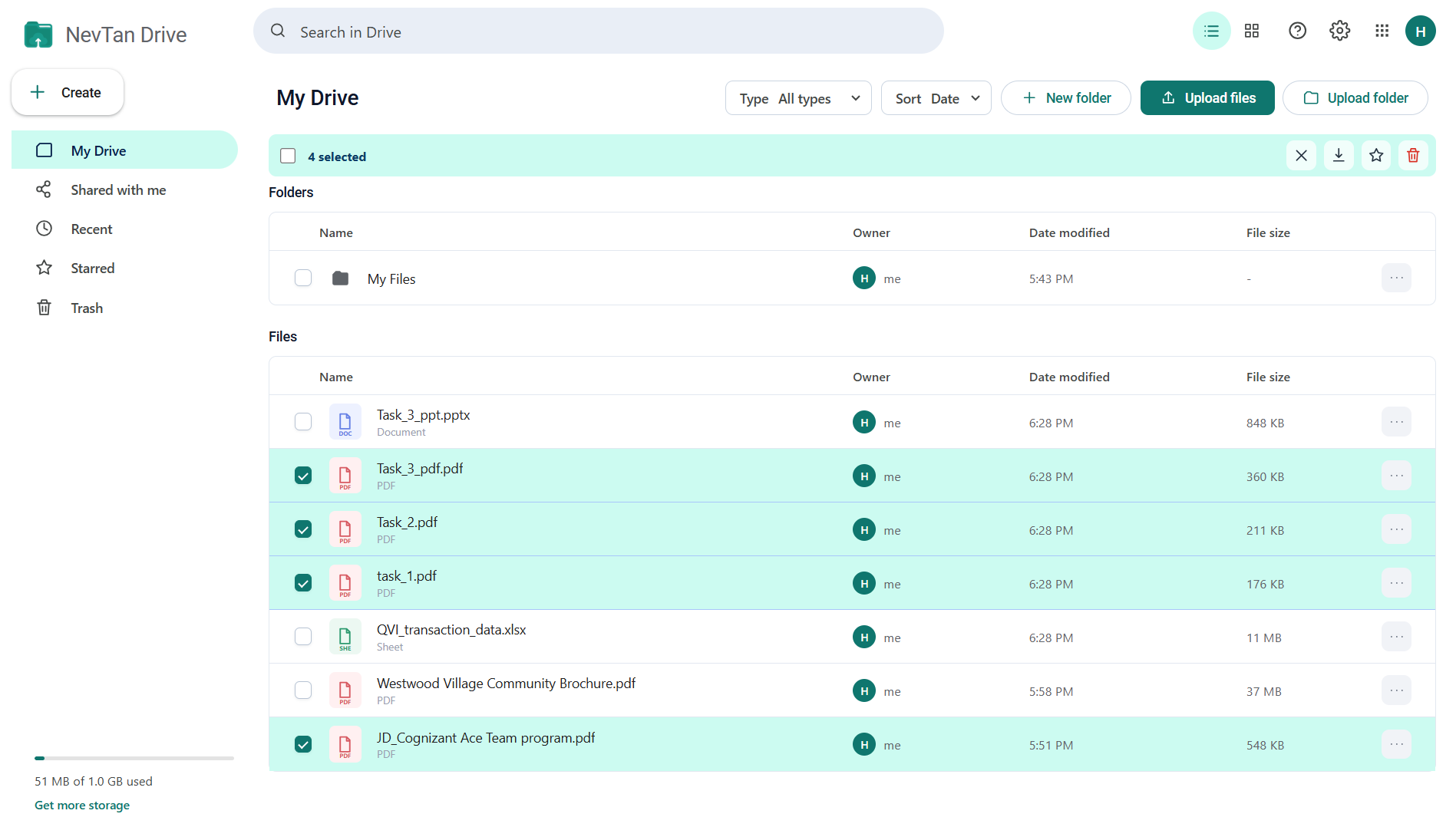
Everything you do to a file or folder is reachable from two places: the ⋮ menu on the item itself, and the bulk toolbar that appears when you tick one or more items.
How to upload files
Use any of these — they all upload into the folder you are currently viewing:
- Upload files at the top right of My Drive. You can select several files at once.
- Create → Upload file in the sidebar.
- Drag and drop — drop files anywhere on the file area. A Drop files to upload overlay names the destination folder while you drag.
A progress bar tracks the whole batch as a single percentage, and a toast reports how many files landed.
Uploading a whole folder
Upload folder lets you pick a folder on your computer and brings the whole tree across. Drive recreates each sub-folder as it goes and reuses any folder that already exists with the same name, so uploading the same tree twice does not produce duplicates.
Creating folders
Select New folder in the heading row, or Create → Create folder in the sidebar. Name the folder and confirm. It is created inside whichever folder you are viewing, so open the parent first.
Actions on a single item
Hover a row (or a grid tile) and select the ⋮ button:
| Action | Applies to | What it does |
|---|---|---|
| Open | Files | Opens the preview window. |
| Edit | Editable files | Opens the full editor for that file type. Only shown when the file can be edited and you have editor or owner access; a lock means your plan does not include that editor. |
| Download | Files | Saves the file to your computer. |
| Copy link | Files | Copies the public share link. If general access is off, Drive opens the share dialog instead and tells you to turn it on first. |
| Star / Unstar | Files | Adds or removes the file from Starred. |
| Details | Files and folders | Opens the details panel on the right. |
| Rename | Files and folders | Opens a dialog to change the name. |
| Move | Files and folders | Opens a folder picker to relocate the item. |
| Share | Files and folders | Opens the share dialog. |
| Delete | Files and folders | Moves the item to Trash. |
Working with several items at once
Tick the checkbox on any file or folder. The toolbar above the list switches to show how many items are selected, along with these actions:
- Share, Copy link, Rename, Move, and Details — available when exactly one item is selected.
- Download and Star — available whenever at least one file is selected.
- Move to Trash — available for any selection.
- Clear selection — the ✕ at the left of the action row.
Select all ticks everything on the current page. Selecting a different folder, changing the type filter, or searching clears the selection.
Moving items
Move opens a folder picker. Choose the destination folder — or the root of My Drive — and confirm. Folders can be moved into other folders the same way.
Deleting and restoring
Delete moves an item to Trash rather than destroying it, and Drive asks you to confirm first. Deleted items stay in Trash until you restore them or delete them forever, and they keep counting toward your storage while they are there. See Trash and restoring files.
Downloading
Download on a single file saves it immediately. With several files selected, the bulk Download button saves them one after another — your browser may ask permission to download multiple files.
Common questions
Can I upload a whole folder at once?
Yes. Upload folder takes a folder from your computer and brings the whole tree across, recreating each sub-folder as it goes. It reuses any folder that already exists with the same name, so uploading the same tree twice does not leave you with duplicates.
Why can I not delete some files in My Drive?
My Drive lists files other people have shared with you alongside your own, and only the owner can delete those. A bulk delete simply skips them and tells you which items were left behind.
Can I act on several files at once?
Yes — tick the checkbox on any file or folder and the toolbar turns into a row of bulk actions. Download, Star and Move to Trash work across a whole selection, while Share, Copy link, Rename, Move and Details need exactly one item selected.