


Previewing files
Select a file's name — or choose Open from its ⋮ menu — to open it in the preview window. Most common formats render in place, so you rarely need to download anything just to look at it.
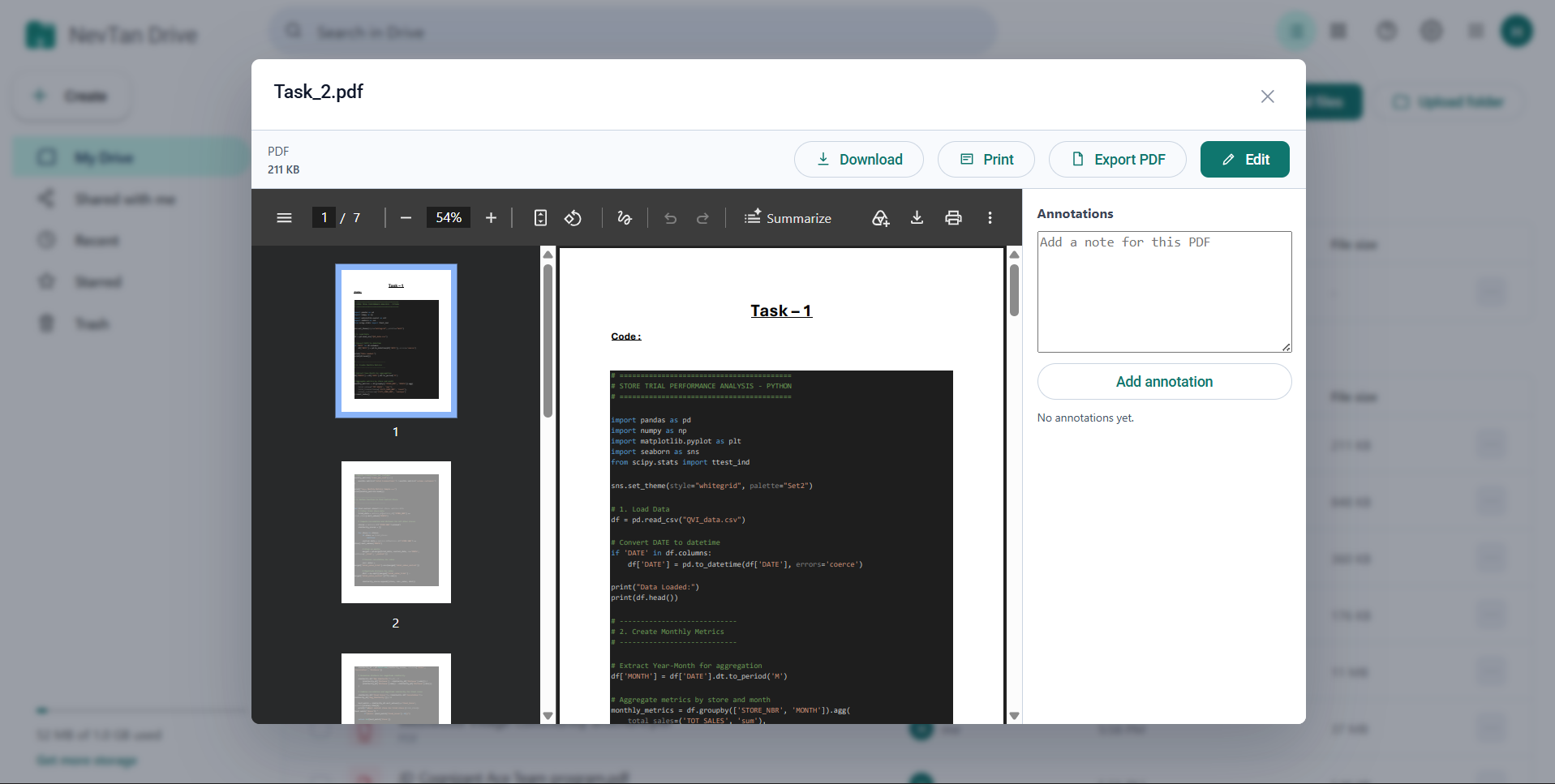
The preview toolbar
| Button | What it does |
|---|---|
| Download | Saves the file to your computer. |
| Opens your browser's print dialog. For a PDF, it prints the document itself rather than the surrounding page. | |
| Export PDF | Produces a PDF of the file. If a direct export is not possible, Drive falls back to the print dialog, where you can choose Save as PDF. |
| Edit | Opens the full editor for that file type. Shown when the file is editable and you have editor or owner access; a lock means your plan does not include that editor. |
The left of the toolbar shows the file type, your access level when the file was shared with you, and the file size.
What each file type looks like
| File type | Preview |
|---|---|
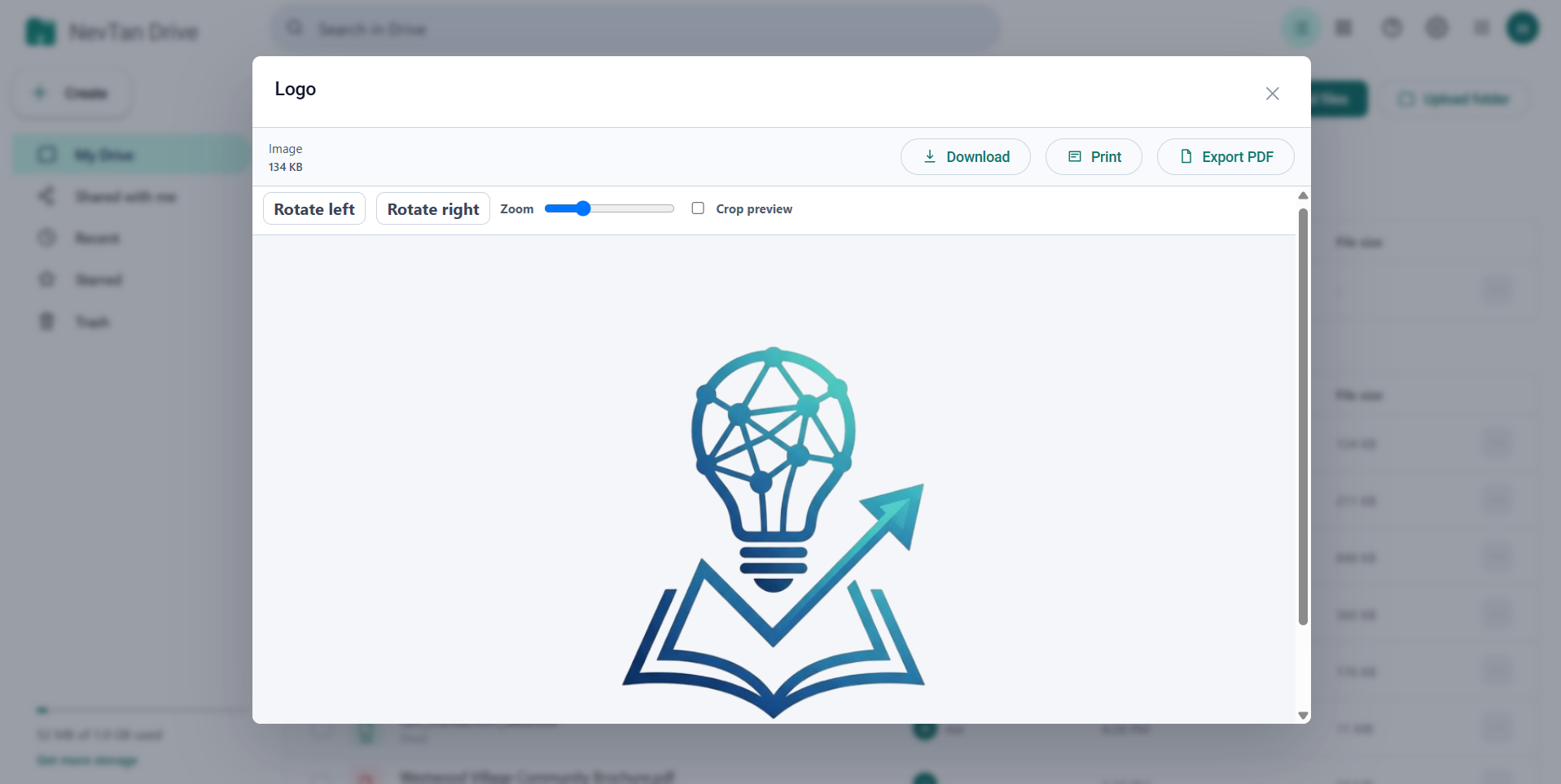
| Images (PNG, JPG, GIF, WebP, SVG…) | Rendered with rotate left/right, a zoom slider from 50% to 180%, and an optional crop preview with a focus slider. |
| Rendered page by page, with a notes column beside it for quick annotations. | |
| Text and code (TXT, MD, CSV, JSON, XML, JS, PY, SQL and many more) | Shown as plain text. |
| Video | A player with controls, ±10 second skip buttons, and playback speed from 0.75× to 2×. |
| Audio | The same player controls and speed options. |
| Word (.docx) | Rendered as a formatted document. |
| Excel (.xlsx) | Rendered sheet by sheet, with tabs when the workbook has more than one sheet. |
| PowerPoint (.pptx) | Rendered slide by slide, numbered. |
| Older Office formats (.doc, .xls, .ppt, .odt, .ods, .odp, .rtf) | Not rendered in the browser. Drive shows the file details and a download button. |
| Anything else | Name, type, and size, plus a download button. |
Image tools
An image preview has its own strip of controls: Rotate left, Rotate right, a Zoom slider, and a Crop preview checkbox that, when ticked, adds a Crop focus slider for panning across the image. These change how the image is displayed — they do not alter the stored file.
PDF notes
Beside a PDF preview is an Annotations column. Type a note and select Add annotation to pin a timestamped reminder to the session. These are quick working notes in the preview — for annotations that are saved into the document itself, use the PDF editor.
Comments
When you have commenter, editor, or owner access, a Comments column appears on the right of the preview. Type a comment and select Add comment; the thread shows each author and timestamp, with your own comments labelled You. See Comments.
If a preview will not load
Drive replaces the preview with a short explanation and keeps the download button available. The usual causes are a format the browser cannot parse, a file that is still uploading, or a connection problem — downloading the file and opening it locally always works.
Common questions
Can I open docx online, or view an xlsx or pptx, without editing it?
Yes. Select the file name and the preview renders it in place: Word documents as formatted text, an xlsx viewer that shows Excel workbooks sheet by sheet with a tab per sheet, and PowerPoint decks slide by slide. Nothing is downloaded and no editor is opened.
Which Office formats does the preview not render?
The older pre-2007 formats — .doc, .xls and .ppt — and the OpenDocument ones, .odt, .ods, .odp and .rtf. For those Drive shows the file's details and a download button instead of guessing at a rendering.
Do I need Office installed to use the xlsx viewer or open pptx online?
No. The preview is a viewer built into Drive, so an .xlsx opens on any machine with a browser. If you want to change it rather than read it, choose Edit to open it in the spreadsheet editor.